Deliverable revisions and variations
After banner production is complete, you can review the generated outputs and modify them or expand them into various versions as needed. FIXFOLIO enables quick edits based on produced banners as well as efficient style expansion and variation generation.
1. Banner list
When banner production is complete, the created assets are first displayed in the banner list.
Banner list: View all created banners and select a banner to move to the detailed screen
Pin to top (unpin): You can pin the selected banner to the top of the list for easy access, and unpin it when needed.
Expand style: Quickly expand and produce banner styles by modifying some elements such as logo, product images, and copy based on prompts while maintaining the core concept and overall style.
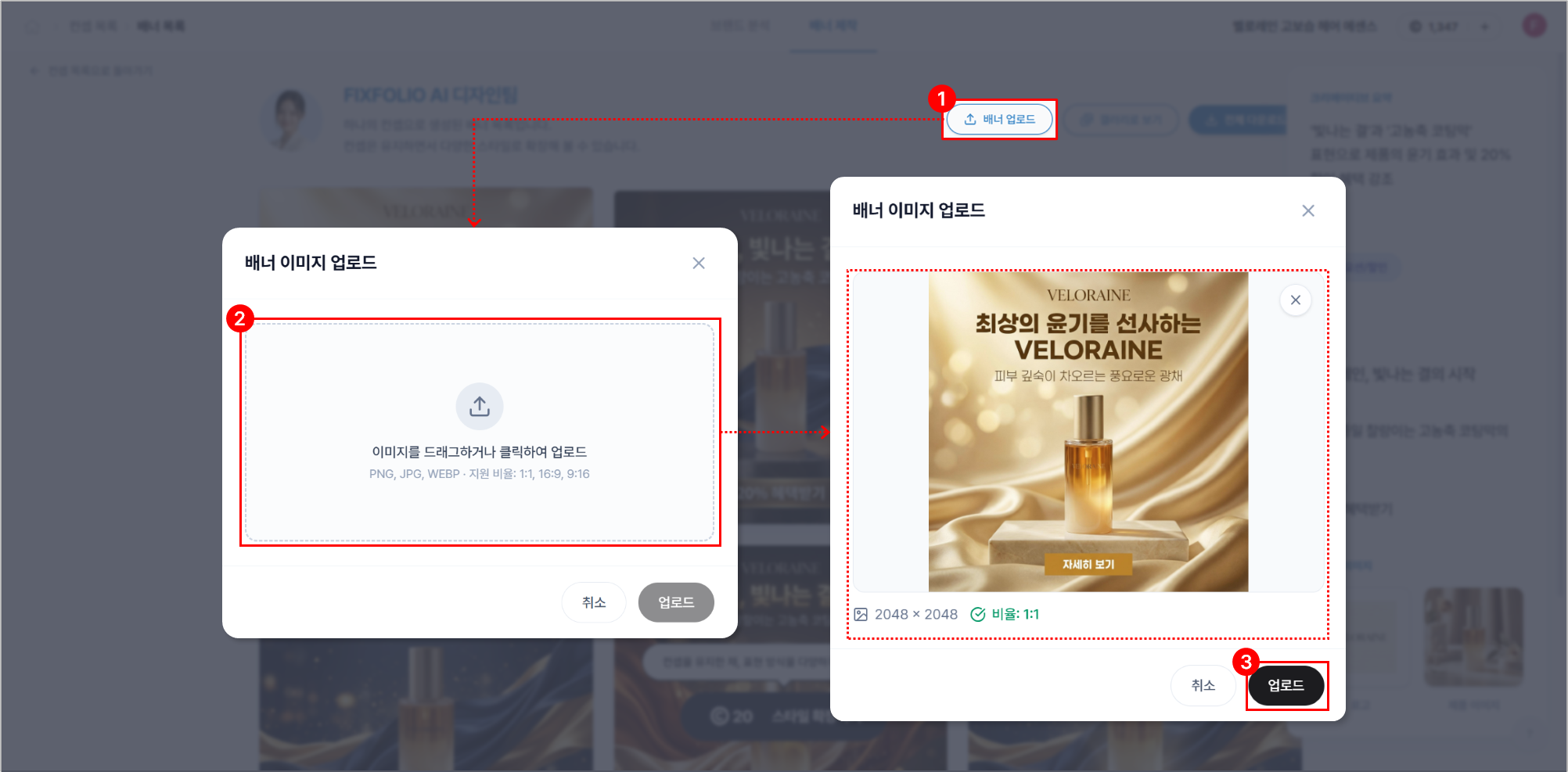
Upload banners: In the banner list, you can manage not only banners created in FIXFOLIO but also banners you uploaded yourself, and you can quickly edit and expand uploaded banners using the detailed edit and variation features.
View as gallery: You can view all banners in the banner list in a gallery format.
Download all: You can download all banners in the banner list at once.

🔎 Learn more | Expand style
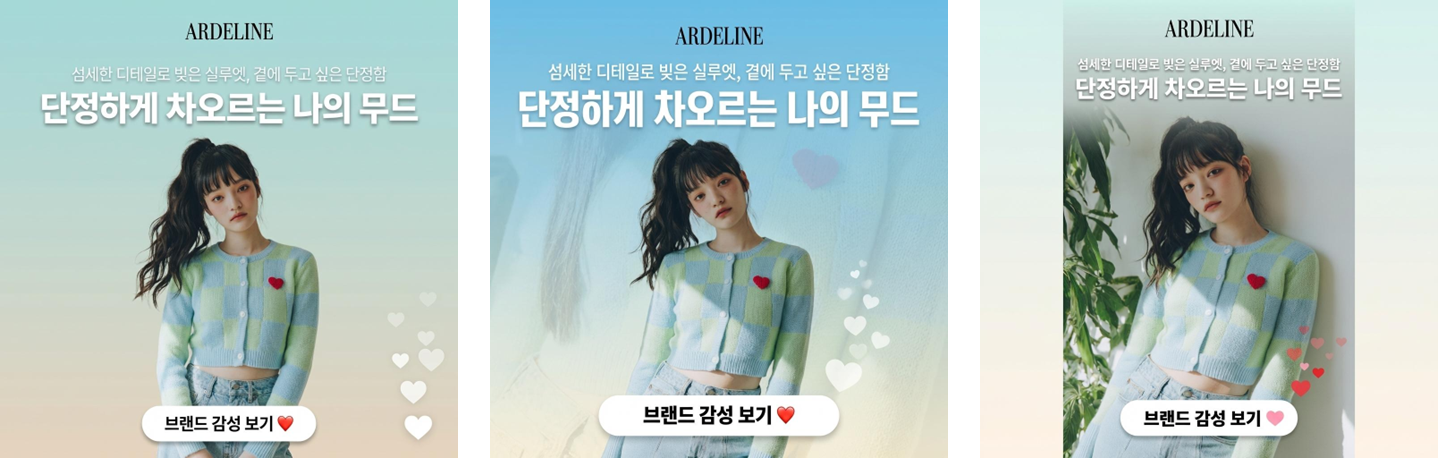
Expand style is a feature that creates expanded designs in a new style by reflecting desired modifications based on an existing banner.
[Expand style] When you click the button, 20 credits per bannerare consumed, and the total consumed credits increase depending on the number of generations selected.
(1) Simple edits using only prompts
Enter the changes you want in the prompt. (e.g., “for a summer vibe,” “brighten the background,” etc.)
After entering, select the number of generations, [Expand style] and click the button to generate banners with the requested modifications applied.

Edit by attaching an image to the prompt
You can attach one image in the prompt input area to request image-based modifications.
(e.g.,
attach a decorative element image (sticker/icon, etc.) → “Please add this image as a decorative element to the banner”)
When uploading images, please check portrait rights and usage rights. Person images or copyrighted images may only be used if commercial use is permitted.
(2) Edit image/copy together
If you want to edit images or copy in addition to the prompt, [select logo, product image, reference, copy to modify only the necessary parts.] Click areas to change detailed settings.
Change logo image
Change product image
Change reference
Change banner aspect ratio to produce
Edit main copy / sub copy / button (CTA) copy
Prompt: Enter additional detailed changes
After setting, select the number of generations, [Expand style] and click the button to generate banners with the requested modifications applied.

Edit by attaching an image to the prompt
You can attach one image in the prompt input area to request image-based modifications.
(e.g.,
attach a decorative element image (sticker/icon, etc.) → “Please add this image as a decorative element to the banner”)
When uploading images, please check portrait rights and usage rights. Person images or copyrighted images may only be used if commercial use is permitted.
✅ Example use | Expand style > Guide for using person images
In Expand style, you can attach a person image to the prompt and include desired actions, poses, and direction to use in banner production.
Instead of reproducing an identifiable person’s image exactly, please use it by referencing a particular style or action and entering a prompt that specifically changes some appearance elements. To ensure the person is not represented identically, be sure to specify appearance features (hair style, face shape, etc.), clothing, gender, and other elements to changewhen producing so it can be used more safely for commercial purposes.
When uploading images, please check portrait rights and usage rights. Person images or copyrighted images may only be used if commercial use is permitted.
Representative example
Enter Expand style prompt
Attach a person image to the prompt and specify the desired modification direction in detail.
[Attached image] Attach one image that can reference the desired person style, action, pose, or mood.

[Text prompt] Using the attached image as reference, enter the desired actions, poses, and direction. If using an image that can identify a specific person, please also specify changes to appearance features or clothing to avoid reproducing the person identically.
[Actual Expand style screen]

🔎 Learn more | Upload banners
If you want to edit banners you own or expand them to various aspect ratios, upload them to FIXFOLIO using the [Upload banner] feature, then use detailed editing and variation features.
In the banner list, [Upload banner] Click the button
Drag or click the image to select banners to upload
[Upload] Click the button to complete the upload
You can then refer to the [Detailed edit page]and [Variation page]to perform detailed edits and create variations in different aspect ratios.

Upload conditions
File formats: PNG / JPG / WEBP
Aspect ratio: 1:1 / 16:9 / 9:16
When you hover over a banner you uploaded, a 'User uploaded' label appears in the lower left to indicate it is an uploaded banner.
2. Concept list
If you navigate back from the banner list screen, you can view the concept listThe concept list represents groups of banners created based on the same production settings (purpose, style, elements, etc.).
View concept list
Add new concept: When producing banners for the same brand product, reselect the production settings such as purpose and style that were chosento create banners with a different concept than before.

[Add new concept] Clicking the button does not immediately deduct credits. Credits are deducted (20 credits per generated banner) when you click the [Create banner] button at the final copywriting step of the banner production settings.
3. Banner details
On the banner detail screen, you can check information about the created banner and perform edits, create variations, download, and other actions.
Aspect ratio and edit count information: Current banner's aspect ratio informationand the advertising media and resolutions corresponding to that ratiocan be viewed. The edit count indicates how many times the banner was edited from the original via [Detailed edit].It shows how many times the banner was modified from the original. (Example: If edited directly from the original banner → edit count 1 / If a modified banner is edited again → edit count 2)
Download: [Download] Click the button to check supported media and resolutions per ratio and select only the files you need to download.
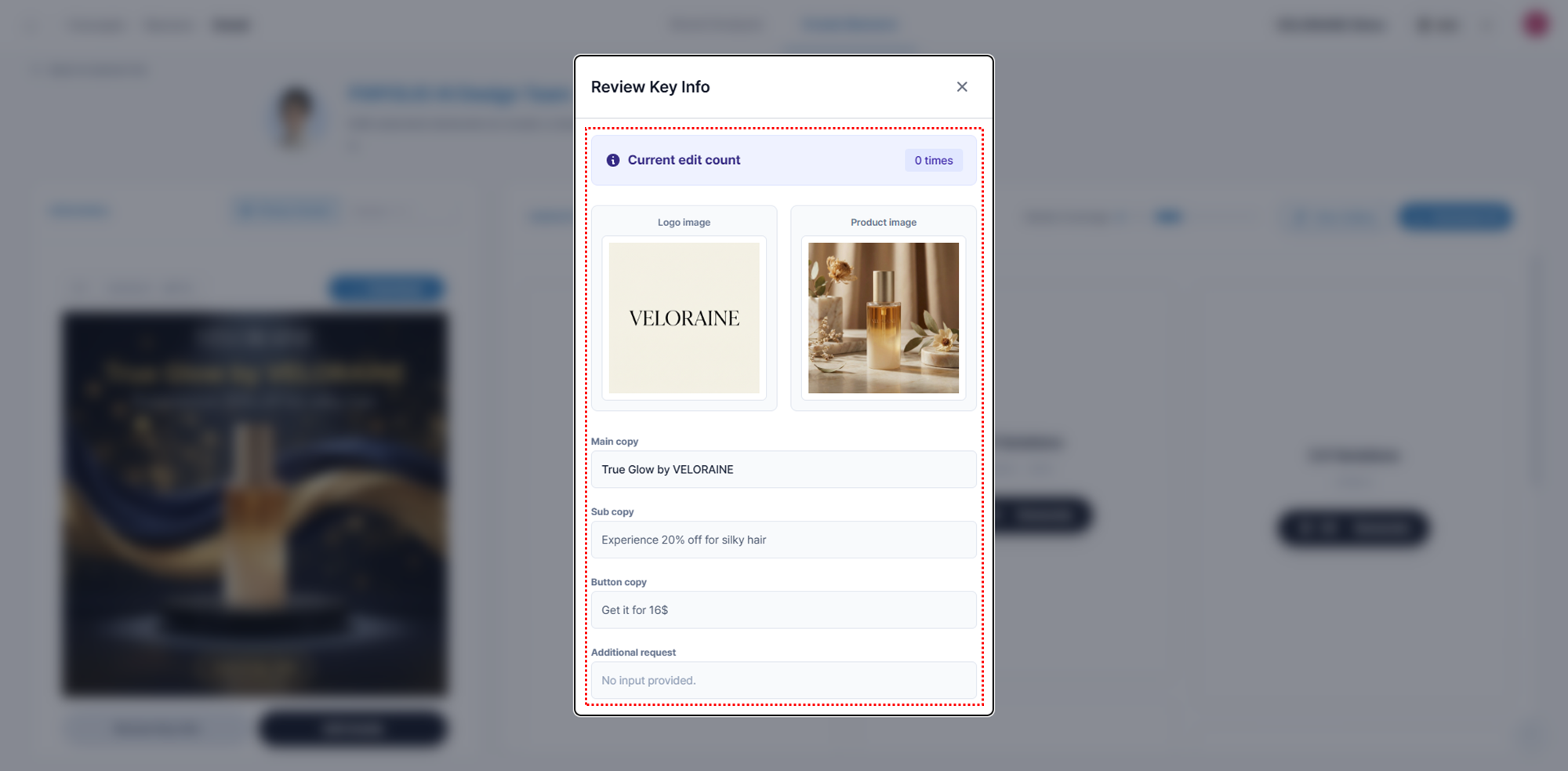
View key information: You can view the settings used to create the banner (logo/product images, copies, etc.).
Detailed edit: You can create an edited version by modifying some elements based on the Original banner.
Version info: [Detailed edit]When additional banners are generated through [Detailed edit], the edited banner is created as a new version and the edit history is accumulated.It will be. The initially created banner is labeled 'Ver 1' (original)and each subsequent edit adds a new version updating the edit count and version info. The most recently edited banner displays the highest number.
Set as representative: [Set as representative] Clicking the button sets that banner as the [representative version]and it will be shown as the representative thumbnail in the banner list.
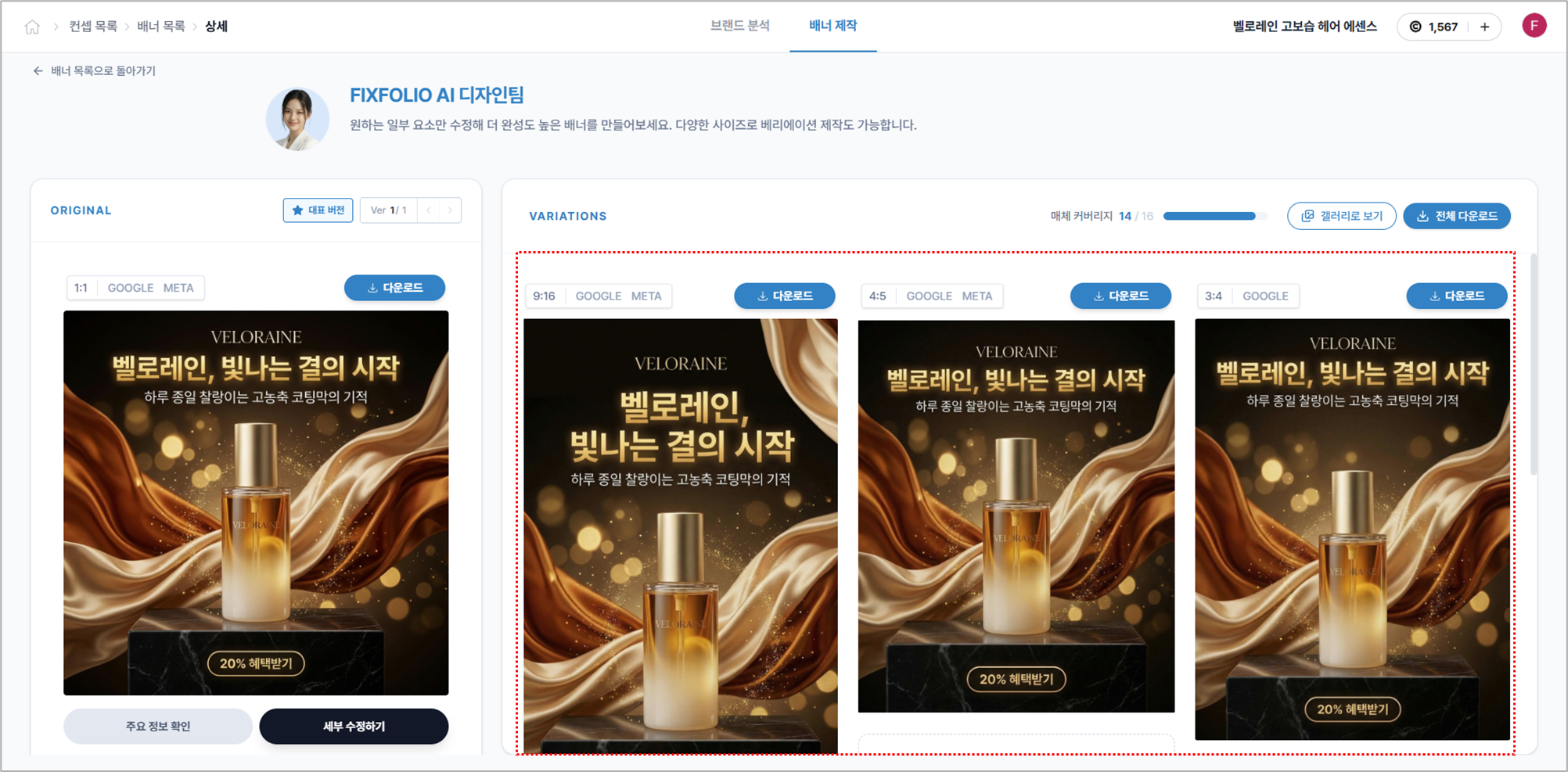
Variation: You can create additional banners in different ratios based on any desired version of the Original banner, and each generated ratio can be downloaded in sizes matching each media's resolution. (Currently supported ratios: 1:1 / 3:2 / 3:4 / 4:5 / 5:4 / 9:16 / 16:9)
View as gallery and download all: You can view generated banners in a gallery format to compare multiple versions at a glance. [Download all] Click the button to download all banners generated from that version in sizes by ratio at once.

For more stable results, we recommend performing detailed edits based on the initially created banner (Ver 1). As the number of edits increases, accumulated changes may cause style shifts, so it is recommended to edit directly from the original (Ver 1) to keep the edit count at 1 whenever possible.
🔎 Learn more | Download
Check the advertising media and resolution, select the desired size, [Download] and click the button.

🔎 Learn more | View key information
You can check the settings used to create the banner.
Current edit count
Logo / product images
Main / sub / button (CTA) copy
Additional requests (prompt)

4. Detailed edit
You can create a new version by editing some elements of the Original banner. You can regenerate the banner by editing the items below. (Banners generated as variations cannot be edited in detail)
Logo and product images
Main / sub / button copy edits
Enter additional requests (prompt-based edits)
For more stable results, we recommend performing detailed edits based on the initially created banner (Ver 1). As the number of edits increases, accumulated changes may cause style shifts, so it is recommended to edit directly from the original (Ver 1) to keep the edit count at 1 whenever possible.

When doing detailed edits, select (check) only the items that need to be changed. For example, if you want to keep the logo image and only change the main copy and add an extra edit request, select only the main copy and additional request fields, enter the content, and click the [Create edited version] button. Unselected items will retain the existing settings.
When uploading images, please check portrait rights and usage rights. Person images or copyrighted images may only be used if commercial use is permitted.
[Create edited version] When you click the button, an edited version will be created based on the input content, and 15 creditswill be consumed.
5. Variation
From a desired version of the Original banner, select the banner ratio you want to generate [Generate] Clicking the button generates the banner in that ratio. After generation, you can check the advertising media and resolution information corresponding to that ratio, select the sizes you need, and download.

[Generate] or [Regenerate] When you click the button, 20 creditswill be consumed.
🔎 Learn more | Variation supported resolutions
1:1
Meta
1080*1080 1200*1200
1:1
1200*1200 480*480
3:2
480*320
3:4
320*480 360*480
4:5
Meta
1080*1350 1200*1500
4:5
960*1200 1200*1500
5:4
300*250
9:16
Meta
1080*1920 900*1600 720*1280
9:16
1080*1920
16:9
Universal
2752*1536
6. Personal / all banners
Created banner outputs can later be viewed again in [Brand analysis + banner production] At the bottom of the main screen, Personal banners or All bannerscan be checked again.
Personal banners: Only banners created under the personal account can be viewed.
All banners: If you use a team account, you can view all banners created by team members together.

When hovering over a banner, you can use the [Hide] feature. The hide feature is a management function that excludes banners from the list without deleting them.
When you choose hide, the banner will not be shown in the list.
[Show only hidden items] Toggle on to display only hidden banners separately.
Frequently Asked Questions (FAQ)
Q. What is the difference between Add new concept, Expand style, and Detailed edit?
A. All three features allow additional banner production, but they differ in scope of modification and production purpose.
Add new concept: A feature to reselect production settings such as purpose, style, and copy direction that were set during banner production to create a completely different concept of bannerlong.
→ Use when you want to produce a completely new concept banner for the same product.
Expand style: While maintaining the existing banner production settings, change some elements like images or copy or partially edit via prompts to expand various styles while keeping the concept.
→ Use when you want to expand various style drafts based on the existing concept.
Detailed edit: Partially modify only necessary elements such as logo, product image, copy, etc. to create a new version. Only selected items change,and the overall design structure and style of the banner remain the same. → Use when you want to precisely change only certain phrases or images in an already completed banner.
Q. When expanding styles using person images, can I make them look like a specific celebrity or model?
A. If you use an image that can identify a specific person or an image of a celebrity/model, please confirm portrait rights and usage permissions in advance. Person images or copyrighted images may only be used if commercial use is permitted. If rights are not secured, we recommend using prompts that change appearance elements so the specific person is not reproduced exactly.
Q. How should I write prompts when using person images for style expansion?
A. Please include desired actions, poses, and direction. If using an image that can identify a specific person, it is recommended to also specify changes to appearance features, hairstyle, clothing, etc., so the person is not reproduced identically.
(e.g., Referencing the attached model image, please change the hairstyle of the existing model image.) Q. Can uploaded banners also be edited in detail and have variations?
A. Yes. Banners you upload yourself can use the detailed edit and variation features in the same way.
Q. How are uploaded banners distinguished from FIXFOLIO-produced banners?
A. When you hover over an uploaded banner, a label appears in the lower left.
Q. If I edit a banner, does the original banner disappear? 'User uploaded' A. No. Even after detailed edits, the original banner remains, and the edited banner is generated as a new version. Edit history is accumulated, and banners created by detailed edits display the edit count and version info (Ver).
Initially created banner → Ver 1 (original)
Subsequently edited banners → automatically update to Ver 2, Ver 3, etc.
Q. If I edit a banner multiple times, can the results differ?
A. Depending on the changes made during detailed edits, the style or expression of the output may differ somewhat. Also, as the edit count increases, accumulated changes can cause style shifts, so
we recommend editing directly from the original (Ver 1) to keep the edit count at 1 whenever possible.
Q. Can I upload any image to use in prompts? When uploading images, please be sure to check portrait rights and usage permissions..
In particular, person images or copyrighted images may only be uploaded and used if you have the rights to use them.
A. No. Q. Do I need to reconfigure all items when doing detailed edits? A. No. You can select (check) only the items that need to be changed, and
unselected items will retain their existing settings
Q. Can I create a variation that keeps the original banner design exactly the same? A. Yes. FIXFOLIO’s variation feature generates banners by changing only the aspect ratio while maintaining the original concept and design.It will be.
Q. Are variations only possible for the original (Ver 1)?
A. No. Variations can be generated from the original (Ver 1) as well as from any versions created by detailed edits.
Q. Can banners created as variations be edited in detail?
A. No. Banners created as variations do not support detailed edits. If banner edits are needed, please first perform detailed edits on the Original banner and then create variations.
Q. Do I have to download all resolutions when downloading?
A. No. You can check the advertising media and resolutions and select only the sizes you need to download.
Last updated